Picture this: your phone, usually a snappy little digital buddy, suddenly starts acting like it’s had too much bad coffee. Apps crash, ads pop up like whack-a-moles, and the battery drains faster than a smoothie at a marathon. Most folks immediately think, “Gotta download an anti-virus!” But honestly, that’s often like buying a bigger bucket when your boat’s got a hole the size of Texas. In 2026, you’ve got better, app-free options. I’ve put together a super simple guide at the end of this post, a little cheat sheet to keep handy for future tech emergencies.
Quick Takeaways
- Forget the “cleaner” apps; your phone’s built-in tools are way more powerful than you think.
- Safe Mode is like putting your phone in a time-out; it stops the naughty apps from running.
- You absolutely must check app permissions regularly – they’re little trap doors for malware.
- A factory reset is the nuclear option, yes, but it’s sometimes the cleanest way to evict a digital squatter.
- Seriously, back up your stuff before anything goes sideways. Always.
Your Phone’s Inner Defense System: Better Than You Think
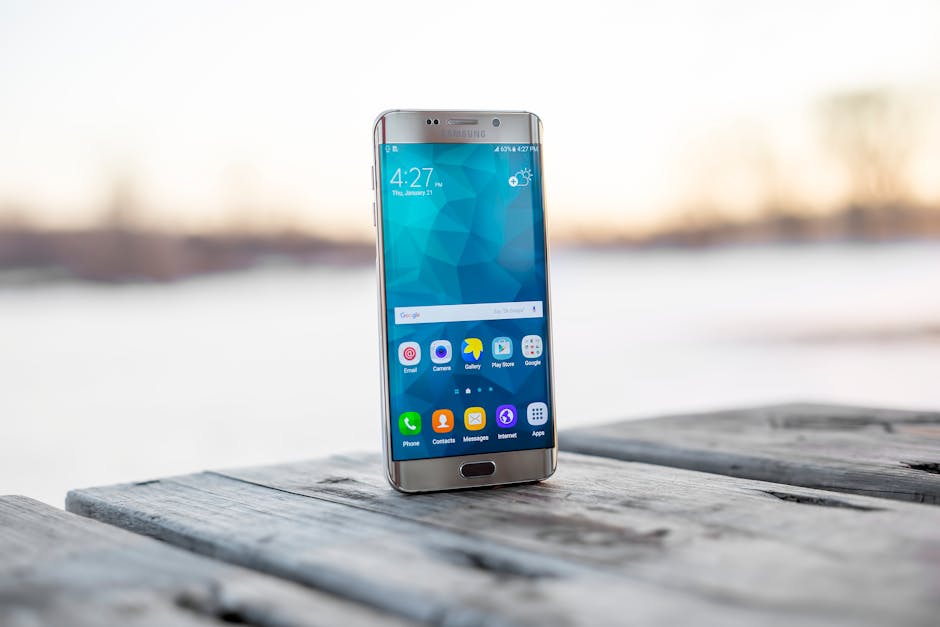
Okay, look. Most modern phone operating systems – we’re talking Android, iOS – they’ve gotten really good at locking things down. They’re like tiny, digital fortresses. The problem isn’t usually that they’re weak, it’s that we, the users, sometimes leave the drawbridge down or hand the keys over to a sketchy-looking knight. And that’s where the “without app” part comes in handy. You don’t need a third-party bouncer. Your phone is the bouncer. You just need to know how to make it do its job.
Step One: Evacuate to Safe Mode
This is your first, best move. Think of Safe Mode like putting a hyperactive toddler in a padded room. All the extra stimulation, all the potentially harmful stuff you might have installed, gets shut down. Only the essential system apps run. If your phone stops acting weird in Safe Mode, then you know 100% that a recently installed app is the problem. Not some mysterious, unremovable system bug. How do you get there? Well, it varies a bit by phone, but usually you press and hold the power button, then press and hold the “Power Off” option until a “Reboot to Safe Mode” or similar prompt appears. For iPhones, it’s a bit different; you’re often looking at restoring from a backup, which we’ll get to. But for Android, Safe Mode is a lifesaver. Once you’re in Safe Mode, go immediately to your “Apps” or “Applications Manager” settings. Look for anything suspicious. Did you download that “free” game last week that promised to make your avatar fly? Did you accidentally tap a link and then install some weird “system update” app? Get rid of it. Uninstall. Delete. Show it the door. It’s better to remove an innocent app and reinstall it later than to leave a malicious one lurking.
Step Two: Shut Down the Supply Lines (Permissions)
Most people don’t think about permissions after the initial install. That’s a huge mistake. A huge, easily avoidable mistake! A sneaky virus isn’t always obvious. Sometimes it’s a legitimate-looking app that asked for a ton of permissions, and you just tapped “Allow” without really thinking. Maybe that “calculator” app really needs access to your camera and contacts, but seriously, why would it? It’s like letting a window cleaner into your house and giving them access to your bank vault. No thanks. Go into your phone’s Settings. Find “Apps & Notifications” or “Applications,” then look for “Permission Manager” or “App Permissions.” This is critical. You can then view apps by what permissions they have. See which apps have access to your contacts, SMS messages, microphone, or camera. If your “Flashlight” app has access to your contacts, it’s time for it to go. That’s a digital red flag waving in the wind, friend. My old student, Sarah, once had a malicious app quietly sending premium SMS messages using her contacts list, all because she blindly approved its SMS permission. It cost her nearly $120 before she figured it out. Kill those permissions. And if an app seems totally legit but has way too many permissions, well, maybe it’s time to uninstall and find an alternative.
The Big Guns: Clearing Out the Digital Junk & Starting Fresh

Sometimes, even after you’ve played digital detective, the problem persists. Maybe the virus buried itself deep, or maybe it’s just a stubborn little digital tick. That’s when you roll out the bigger, still app-free, weapons.
Clearing Caches and Downloads Folder
This might seem minor, but it can work wonders. Viruses often leave remnants in your phone’s cache or download folder. They might hide configuration files or even the core virus payload itself there, waiting for a restart or another trigger. First, your Downloads folder. Go into your file manager app (most phones have a built-in “Files” or “My Files” app). Look for the “Downloads” folder. See anything weird? Any random APK files (Android app installers) you don’t remember downloading? Any strange documents or images? Delete them. Don’t even open them to “check.” Just nuke them from orbit. Next, app caches. This one is less likely to hold a live virus, but clearing it can resolve performance issues that look like a virus. Go to Settings > Apps & Notifications > See All Apps. Tap on suspicious apps (or even all the ones you use frequently) and hit “Storage & cache,” then “Clear cache.” You can also “Clear storage” or “Clear data,” but be warned, this will wipe that app’s data and settings, making it feel like a fresh install.
The Nuclear Option: Factory Reset
Alright, if you’ve tried everything above and your phone is still acting like it’s possessed by a digital poltergeist, it’s time for the ultimate, app-free solution: a factory reset. This is the big one. It wipes everything on your phone – apps, photos, contacts, settings, that embarrassing selfie you took last year – and restores it to the state it was in the day you pulled it out of the box. Yes, it’s a hassle. But it’s the only way to guarantee total eradication of whatever digital crud has taken root. Make sure you’ve backed up absolutely everything important – photos to Google Photos or iCloud, contacts to your Google account or Apple ID, important documents to cloud storage. Seriously, if you skip this step, you’re going to regret it more than that haircut in middle school. Once backed up, head to Settings > System > Reset options (Android) or Settings > General > Transfer or Reset iPhone (iOS). Then select “Erase all data (factory reset).” Brace yourself. It takes a while, but when it’s done, your phone will be sparkling clean, ready for a fresh start. And because you’re restoring it from a clean slate, you don’t have to worry about the virus tagging along.
Who Is This Actually For?
This guide is for anyone who’s ever stared at their glitching phone with a knot in their stomach, wondering if they need to drop another $15 on a “premium” anti-virus app. It’s for the Android user who downloaded that one shady APK from a forum. It’s for the iPhone owner who tapped a convincing phishing link, even if they won’t admit it. It’s for you, if you want to know how your phone actually works on a deeper level, not just what some flashy app claims it can do. This isn’t for the person who needs their hand held through every single step, but for the smart 15-year-old (and everyone else) who can follow a few clear instructions.
People Also Ask
How do I know if my phone actually has a virus?
Your phone might be overheating, the battery draining super fast, random ads popping up, or apps crashing constantly. If your data usage skyrockets even when you’re not doing much, that’s another big sign. Often, the phone just feels sluggish and unresponsive.
Can iPhones get viruses without me installing anything?
It’s much rarer, but yes, it’s possible through sophisticated attacks or “zero-click exploits” where simply visiting a malicious website can infect you. More often, though, iPhone “viruses” are actually intrusive pop-ups or calendar spam from malicious links you accidentally clicked.
Is a factory reset my only option if I don’t want an app?
Not at all! Try the Safe Mode and permissions-checking steps first. Many issues are solved by simply uninstalling a bad